how-to guide
use nesti inside the safaricom one app
already have the one app on your phone? then nesti is already in your pocket — nothing new to download.
four quick steps
step 1: open your safaricom one app
sign in like you always do. you'll land on the home screen, with your m-pesa balance right at the top.
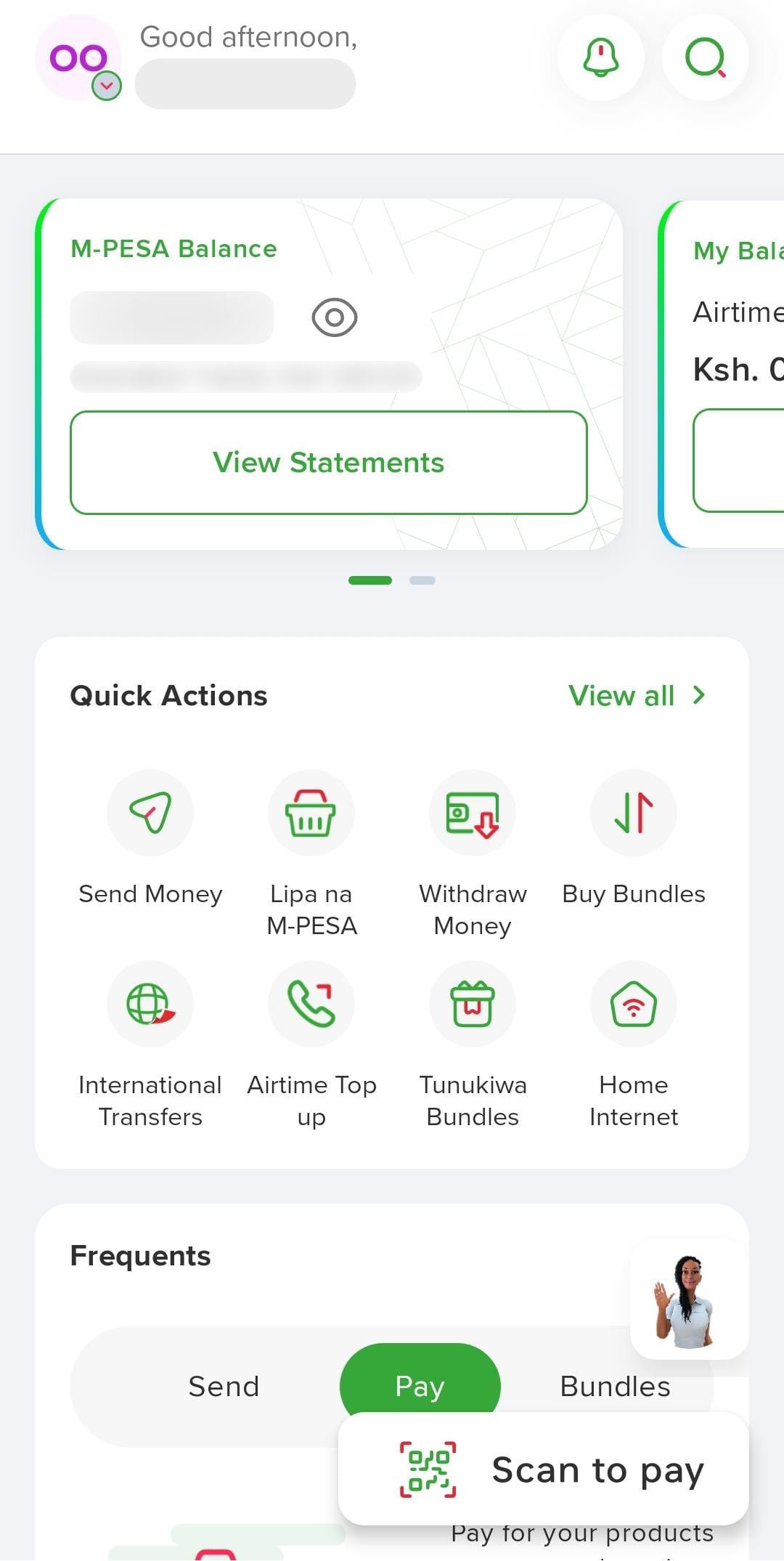
step 2: scroll down to browse all services
below quick actions you'll find colourful tiles for everything the one app can do. the green ring marks utilities — that's your next tap.
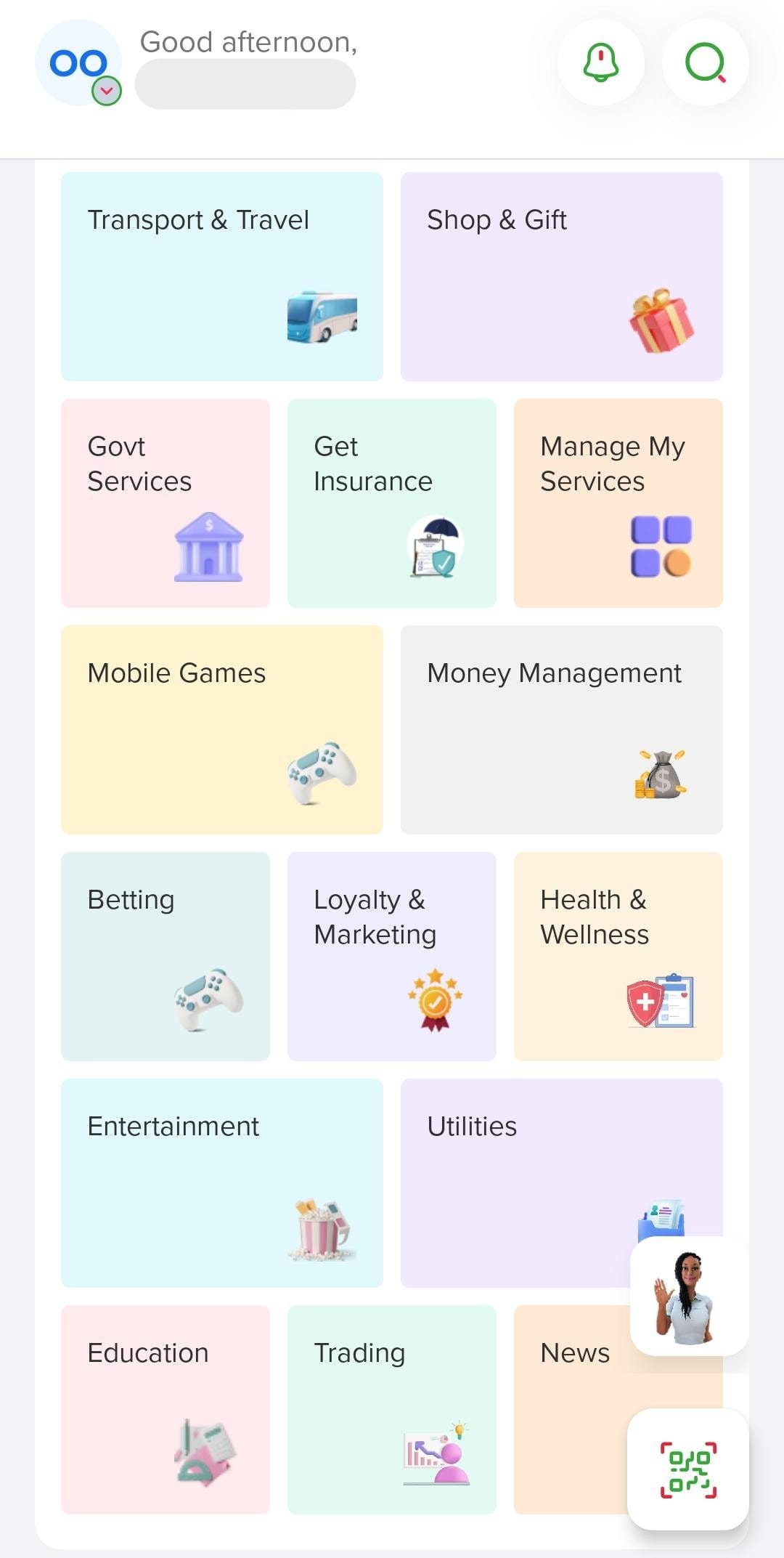
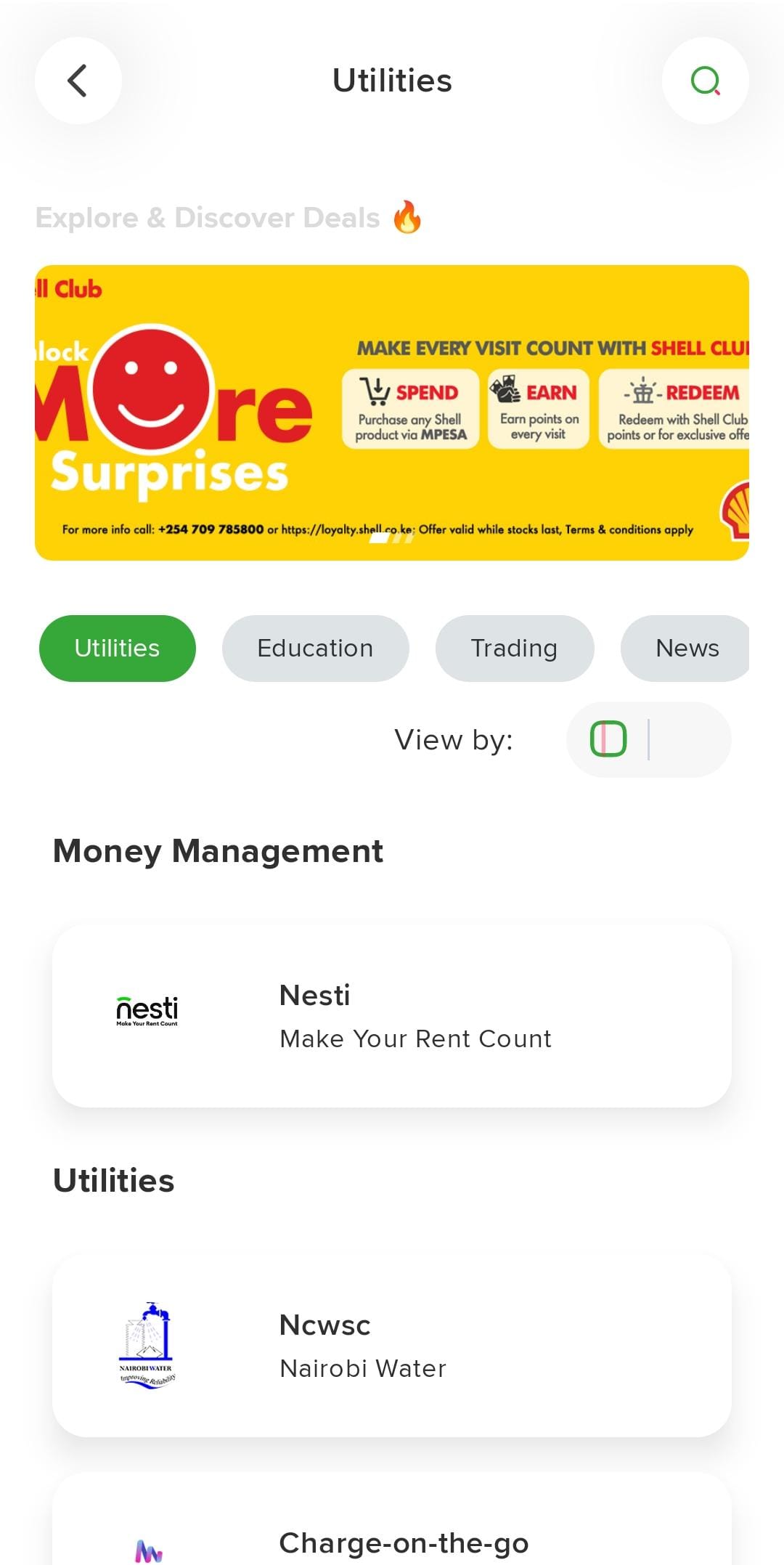
step 3: tap utilities, then look under money management
nesti sits right at the top of the list. look for our logo and 'make your rent count'.
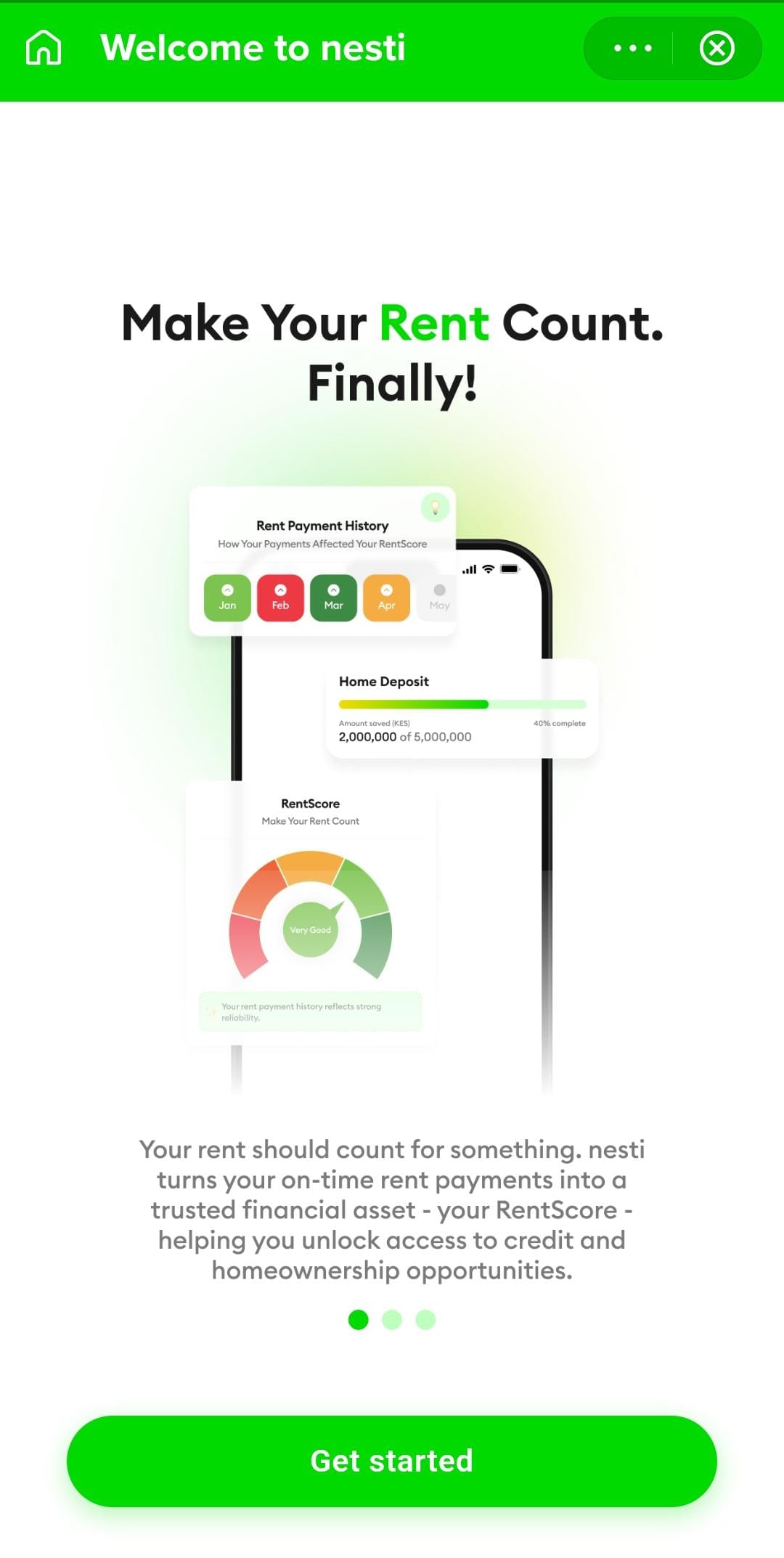
step 4: tap nesti, then get started
the nesti mini-app opens right inside the one app — no download, no new password. tap the green get started button and you're in.
good to know
is this the same as the m-pesa app?
yes — the safaricom one app is the new home of m-pesa. if you already use it to send money or buy bundles, you have everything you need.
prefer the standalone app?
everything nesti does, in its own dedicated home — free on both stores. your rent should count for something.